
Setting performer spacing
DrillFlo gives you two ways to fix the space between performers: set an exact number of steps, or let Tidy up even things out between the end performers.
-
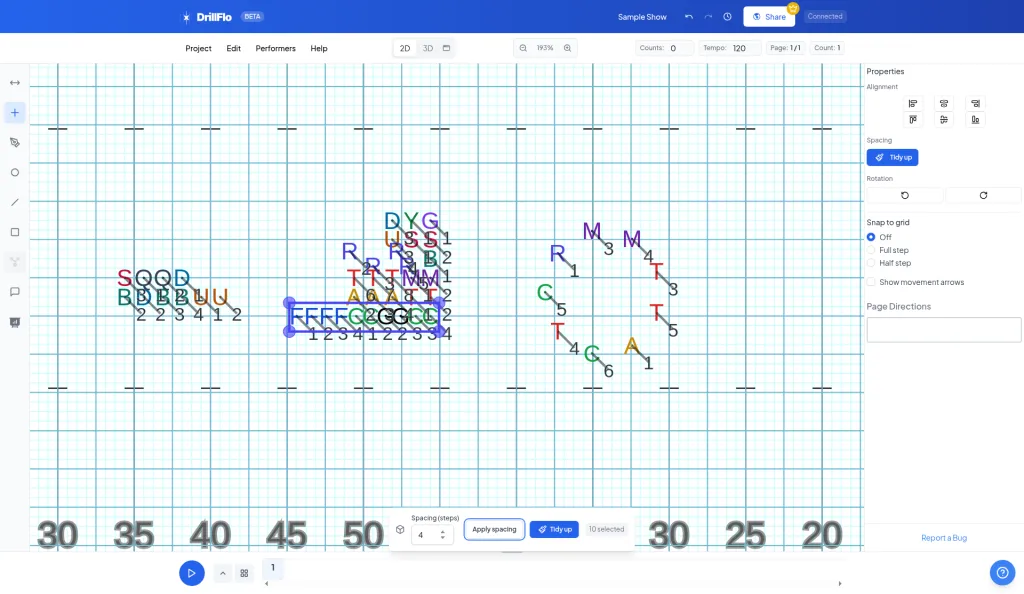
Select your performers. Press 2 for Select mode and select the performers in your line. A bar appears near the bottom of the field.
-
Set an exact spacing. In the bar, enter a number in Spacing (steps), from 1 to 20. It starts at 2. Then click Apply spacing. DrillFlo spaces performers along the direction your line runs, side to side or front to back, keeping one end in place.
-
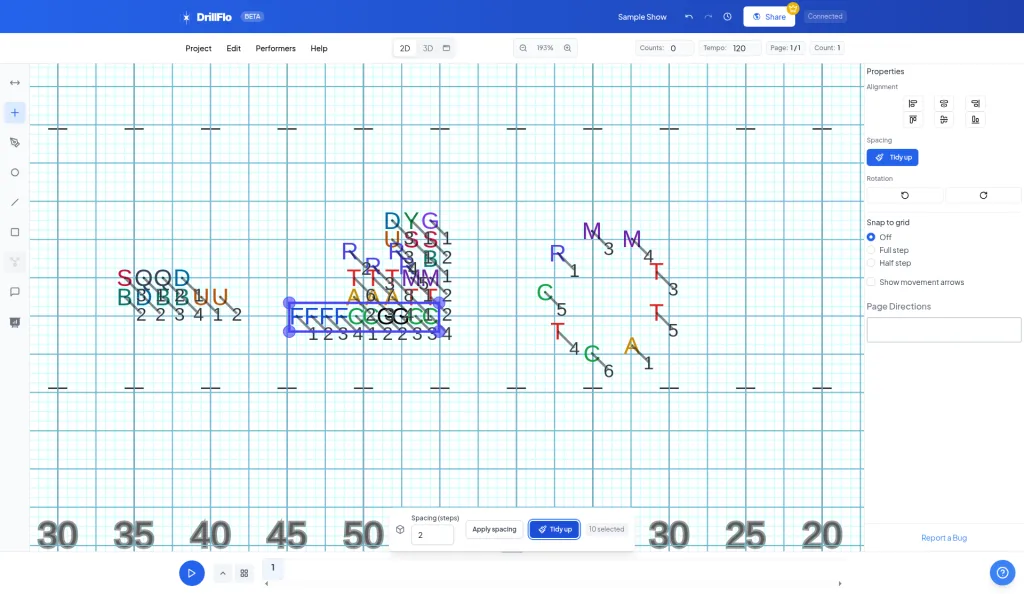
Or tidy up. With three or more performers selected, click Tidy up in the bar (or under Spacing in the right panel). DrillFlo keeps the outermost performers where they are and spaces and aligns everyone else evenly between them.
- Best on straight lines. Apply spacing works along one direction, so it’s best for lines that run straight side to side or front to back.
- Curved form? Tidy up lines performers up in straight lines, so skip it for arcs and circles. Use the shape tools instead, like in Placing performers in a circle.
- Snap matters. If Snap to grid is set to Full step or Half step, Tidy up snaps positions to match.