
Aligning performers
The Alignment buttons line up your selected performers along one edge or through the middle of the group.
-
Select your performers. Press 2 for Select mode and select two or more performers.
-
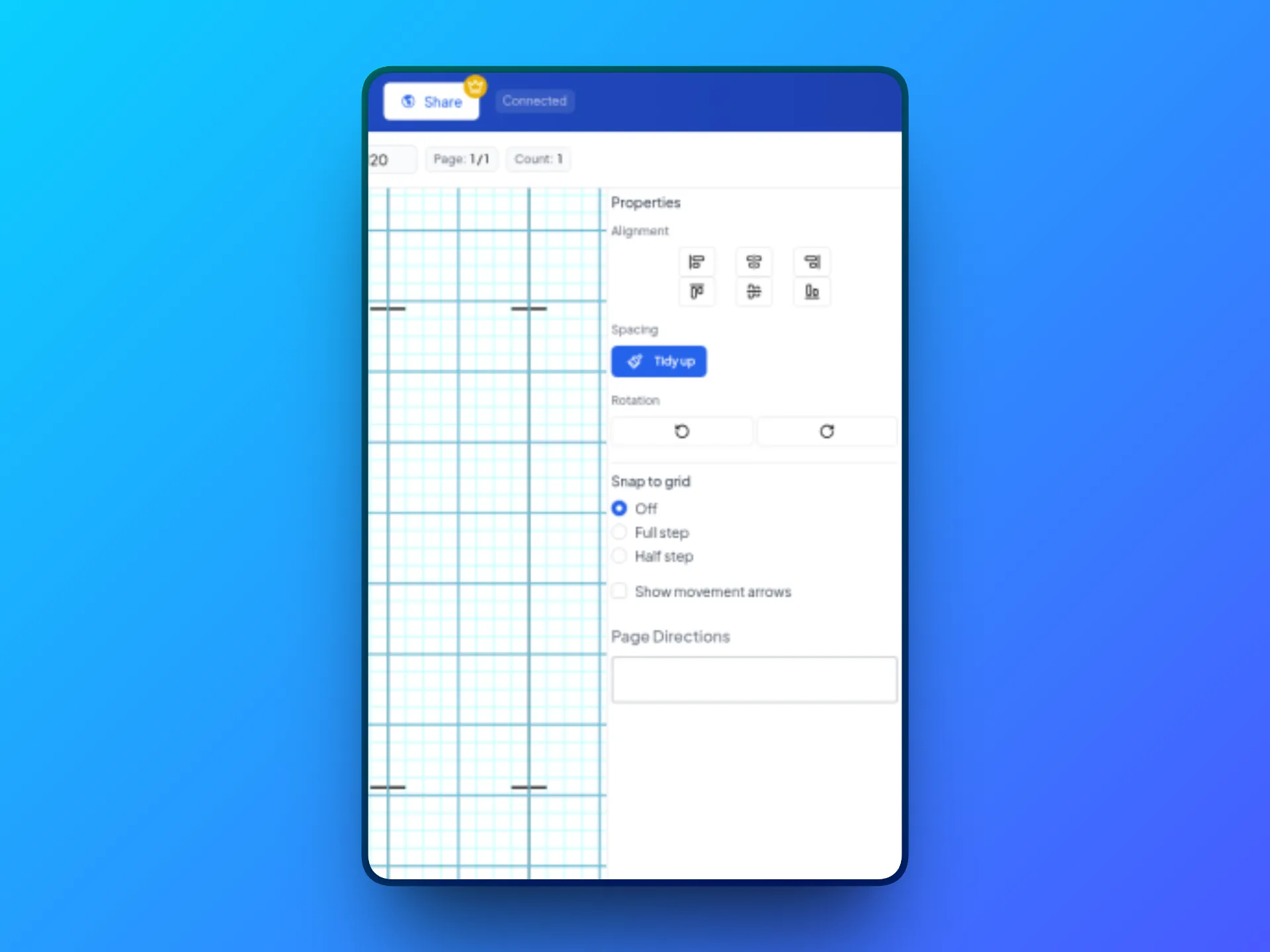
Find Alignment. In the right panel, look under Alignment. Hover over a button to see its name.
-
Click an alignment button.
- Align Left lines everyone up with the performer farthest to the left.
- Align Center lines everyone up side to side on the middle of the group.
- Align Right lines everyone up with the performer farthest to the right.
- Align Top lines everyone up with the performer closest to the top of the field.
- Align Middle lines everyone up front to back on the middle of the group.
- Align Bottom lines everyone up with the performer closest to the bottom of the field.
- Even out the gaps next. Aligning lines performers up but doesn’t change the space between them. See Setting performer spacing.
- Selection cleared? After Align Center or Align Right, your performers are deselected. Select them again to keep working.
- Changed your mind? Click Edit > Undo.