
Selecting performers
Almost everything you do to performers starts with selecting them. Here are all the ways to do it.
-
Switch to Select mode. Click the Select tool in the toolbar on the left (its tooltip says “Select (2)”), or press 2 on your keyboard.
-
Select one performer. Click a performer on the field.
-
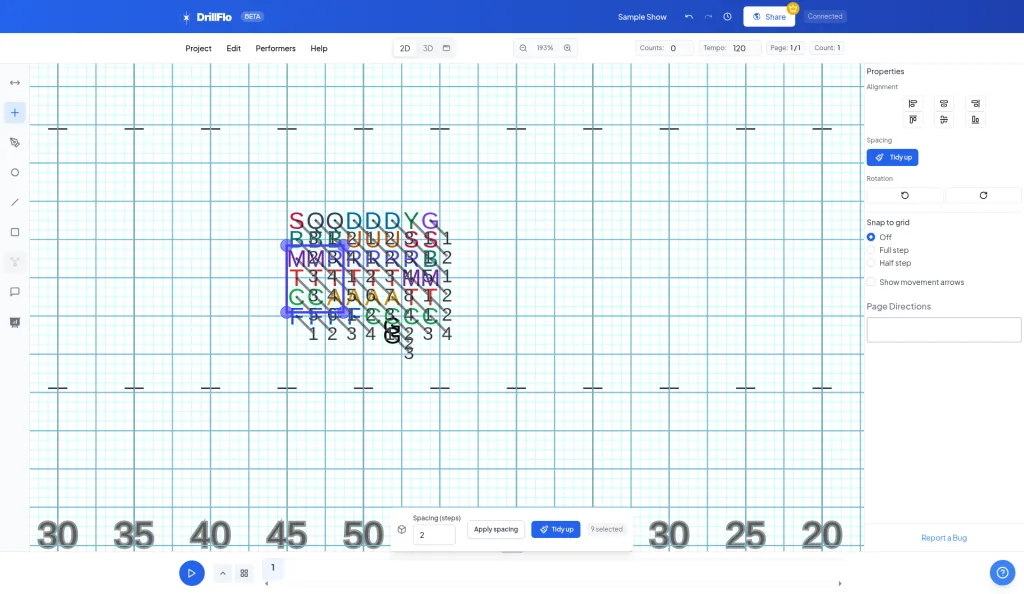
Select a group. Click an empty spot on the field and drag a box around the performers you want. Everyone inside the box is selected.
-
Add or remove performers. Hold Shift and click a performer to add them to your selection, or to remove them if they’re already selected. Hold Shift while you drag a box to add more performers.
-
Select a whole section. Double-click a performer to select everyone with the same label. You can also right-click a performer and choose Select All ‘T’ Performers (with that performer’s label), or Deselect All ‘T’ Performers to remove that section from your selection.
-
Select everyone. Click Edit > Select All Performers, press ⌘A (Mac) or Ctrl+A (Windows), or right-click an empty spot on the field and choose Select All.
-
Clear your selection. Click an empty spot on the field.
- Know how many you’ve got. When performers are selected, a bar near the bottom of the field shows how many are selected, like “8 selected”.
- Shortcuts not working? Keyboard shortcuts don’t run while your cursor is in a text box. Click the field first.
- Next up: Moving performers.