
Placing performers in a circle
The Circle shape places your selected performers evenly around a circle (or an oval) that you draw on the field.
-
Select your performers. Press 2 for Select mode and select the performers you want in the circle. The shape tools stay grayed out until performers are selected.
-
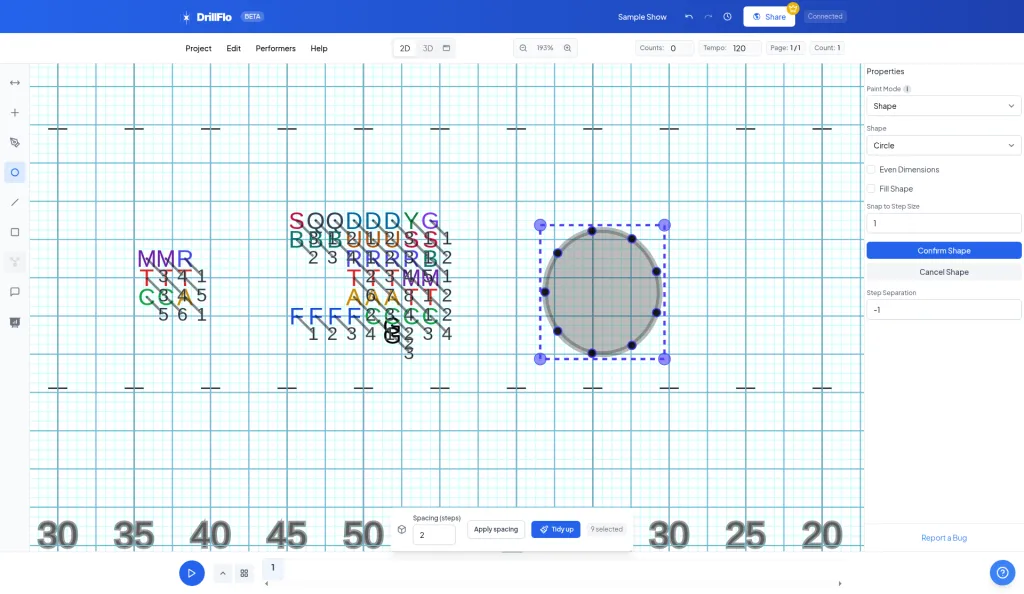
Click the Circle shape tool. In the toolbar on the left, click Circle shape. The right panel shows Paint Mode set to Shape and Shape set to Circle.
-
Want a perfect circle? Check Even Dimensions. Without it, you can draw an oval.
-
Draw the circle. Start on an empty spot away from your selected performers and drag across the field to set the circle’s size. Preview dots show where each performer will land.
-
Adjust the spacing (optional). Step Separation starts at -1, which spaces performers evenly around the whole circle. Enter a number of steps to space them that far apart instead.
-
Click Confirm Shape. Your performers move onto the circle. To start over, click Cancel Shape and draw again.
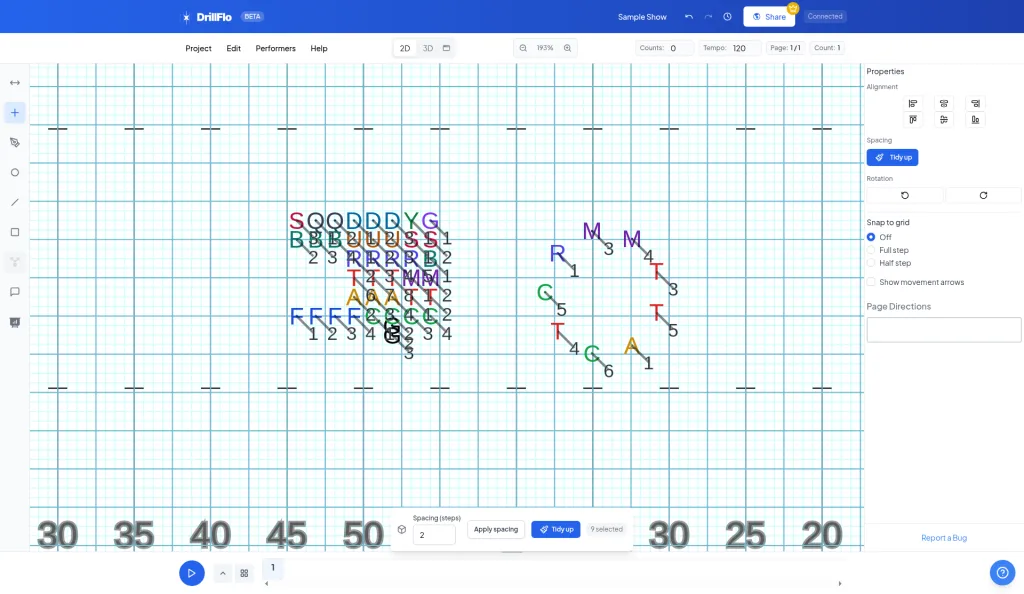
- Fill the circle instead. Check Fill Shape to place performers on a grid inside the circle. Set the gaps with Horizontal Step Spacing and Vertical Step Spacing.
- Snap the shape to the grid. Snap to Step Size (1 by default) controls how the shape snaps to steps while you draw. Set it to 0 for no snapping, or 0.5 for half steps.
- Skip Tidy up on curves. Tidy up lines performers up in straight lines, so it can flatten your circle.
- Done drawing? Press 2 to go back to Select mode.