
Setting performer instruments
Each performer carries an instrument or piece of equipment in the 3D view. DrillFlo picks one for you based on the performer’s label letter, and you can change it for a whole section or for one performer.
-
Open the Performers window. In the menu bar, click Performers, then click Performers in the menu that opens.
-
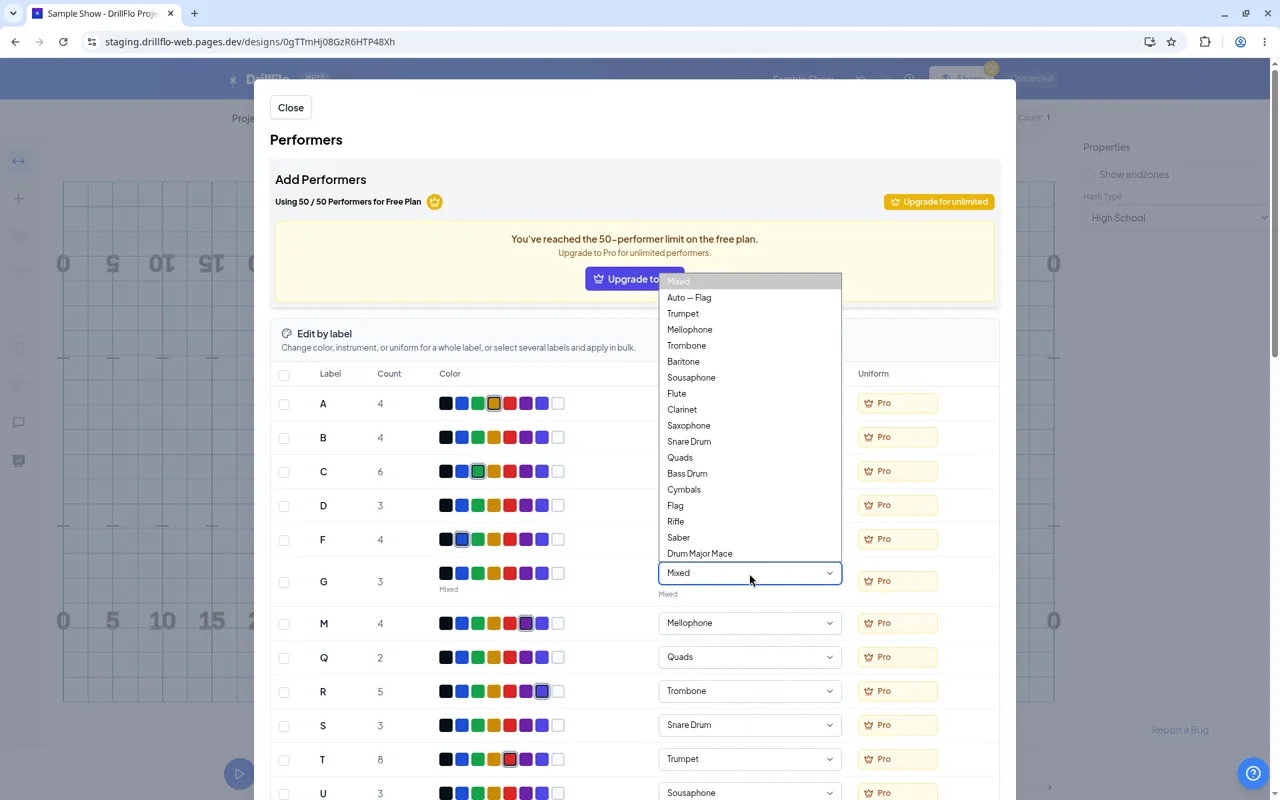
Set an instrument for a whole label. In the Edit by label table, find the row for the label you want, like T. Choose an instrument from the Instrument menu in that row. Every performer with that label gets it.
-
Or set several labels at once. Check the box next to each label you want to change. In the bar that appears above the table, choose an Instrument, then click Apply instrument. Click Clear selection when you’re done.
-
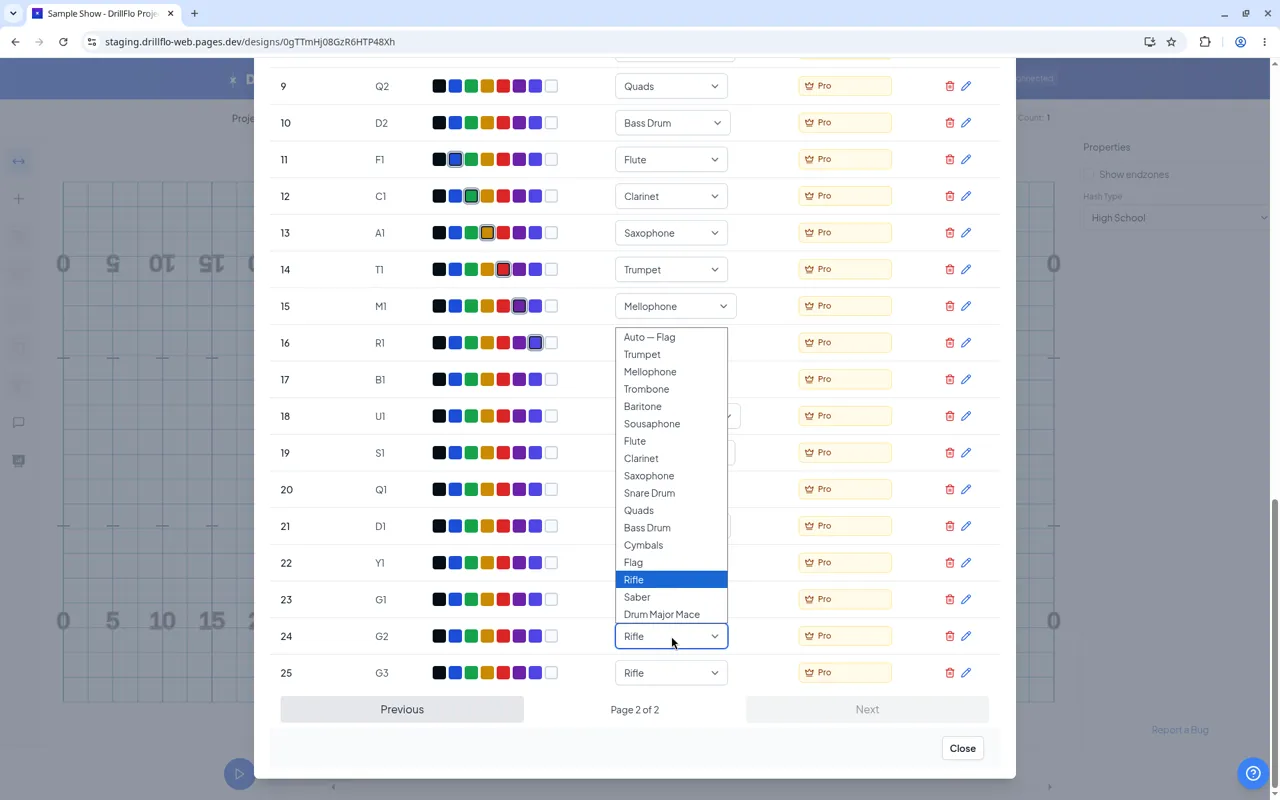
Set an instrument for one performer. In the performer list at the bottom of the window, choose from the Instrument menu in that performer’s row.
-
Close the window. Click Close. Your instruments show up when you view your drill in 3D.
Instrument choices
Section titled “Instrument choices”You can choose Trumpet, Mellophone, Trombone, Baritone, Sousaphone, Flute, Clarinet, Saxophone, Snare Drum, Quads, Bass Drum, Cymbals, Flag, Rifle, Saber, or Drum Major Mace.
How Auto works
Section titled “How Auto works”When the instrument is set to Auto, DrillFlo picks it from the label letter. The menu shows what Auto will use, like “Auto — Trumpet”.
| Label | Auto instrument |
|---|---|
| T | Trumpet |
| M | Mellophone |
| O | Trombone |
| B | Baritone |
| U | Sousaphone |
| F | Flute |
| C | Clarinet |
| X | Saxophone |
| S | Snare Drum |
| Q | Quads |
| D | Bass Drum |
| Y | Cymbals |
| G | Flag |
| R | Rifle |
| A | Saber |
| Z | Drum Major Mace |
Any other label uses Trumpet.
- Want to go back to Auto? Choose Auto (from label) in the bulk bar, or the Auto option in any Instrument menu.
- Changing a label changes Auto. If you relabel performers, performers set to Auto pick up the instrument for their new letter.
- See them in action. Learn more in Viewing a drill in 3D.