
Viewing a drill in 3D
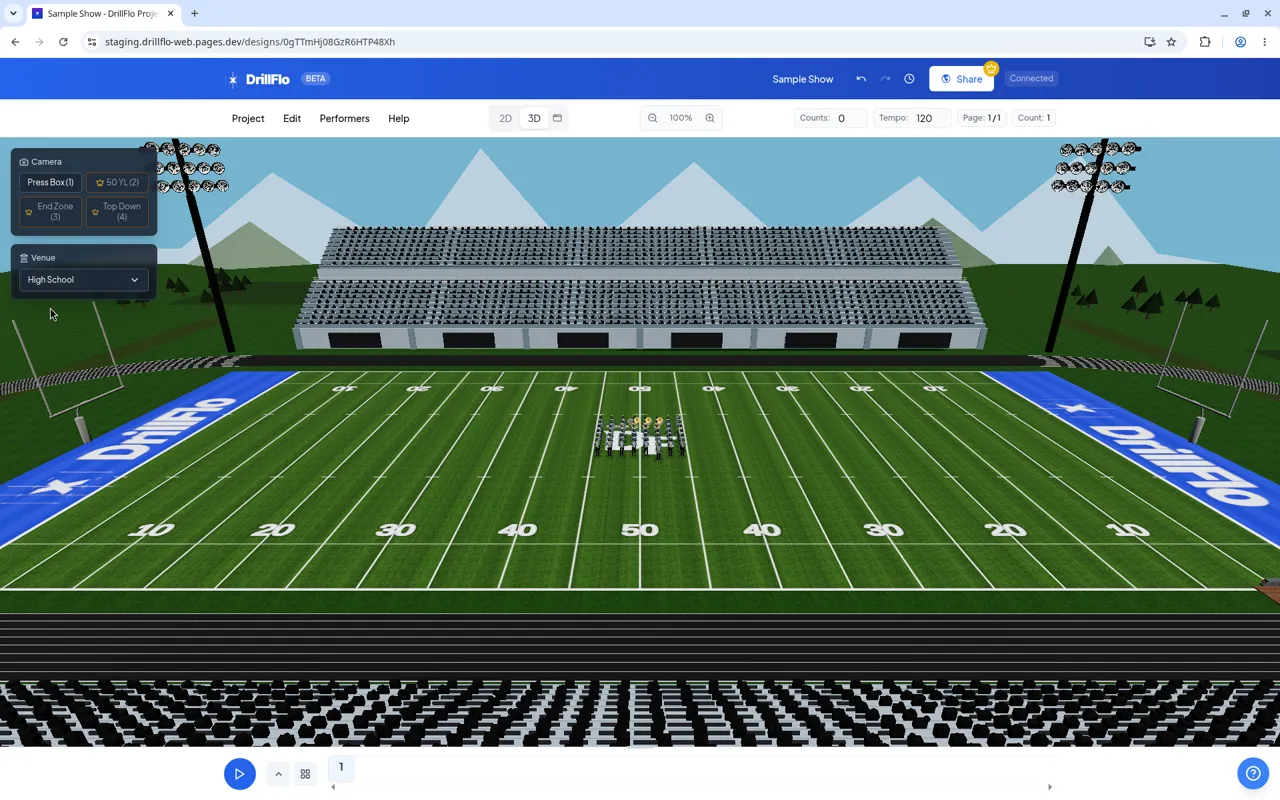
See your drill the way an audience would. The 3D view shows your performers, with their instruments, on a 3D field.
-
Switch to 3D. In the menu bar, click 3D in the 2D / 3D switch. You can also click Project > View 3D. You’ll see “Loading 3D view…” for a moment.
-
Play your drill. Click Play in the timeline, or press the spacebar. The timeline stays at the bottom, so you can jump to any page.
-
Change the camera. In the Camera panel, click Press Box (1), 50 YL (2), End Zone (3), or Top Down (4), or press 1 to 4 on your keyboard. On an indoor floor, the camera names change to match the venue.
-
Pick a venue. Use the Venue menu under the camera buttons to choose the stadium around your field.
-
Go back to 2D. Click 2D in the menu bar switch.
Open 3D in a new window
Section titled “Open 3D in a new window”Click the window button next to the 2D / 3D switch (Open 3D in a new window). The 3D view opens in its own window while you keep editing in 2D. To bring it to the front, click 3D. To close it, click the same button again (Close 3D window).
If the window doesn’t open, you’ll see “Could not open 3D window. Allow pop-ups for this site and try again.” Allow pop-ups for DrillFlo in your browser and try again.
- Move the camera yourself. Drag in the 3D view to move the camera, and scroll to zoom.
- Instruments come from your labels. To change what performers carry, see Setting performer instruments.
- Change the stadium anytime. The Stadium Venue setting in Project > Field Settings controls the same choice.