
Placing performers in a block
A block is a filled rectangle. Draw a rectangle, turn on Fill Shape, and DrillFlo places your selected performers on an even grid inside it.
-
Select your performers. Press 2 for Select mode and select the performers you want in the block.
-
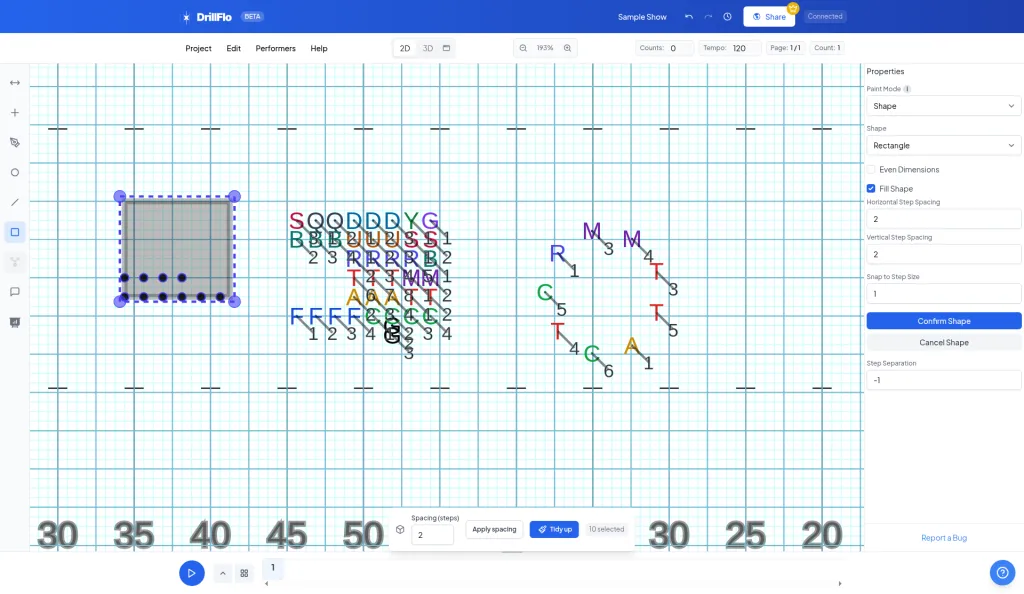
Click the Rectangle shape tool. In the toolbar on the left, click Rectangle shape. The right panel shows Paint Mode set to Shape and Shape set to Rectangle.
-
Turn on Fill Shape. Check Fill Shape in the right panel.
-
Set the spacing. Enter Horizontal Step Spacing (side to side) and Vertical Step Spacing (front to back). Both start at 2 steps.
-
Draw the block. Start on an empty spot away from your selected performers and drag to set the size of the rectangle. Preview dots show where performers will land.
-
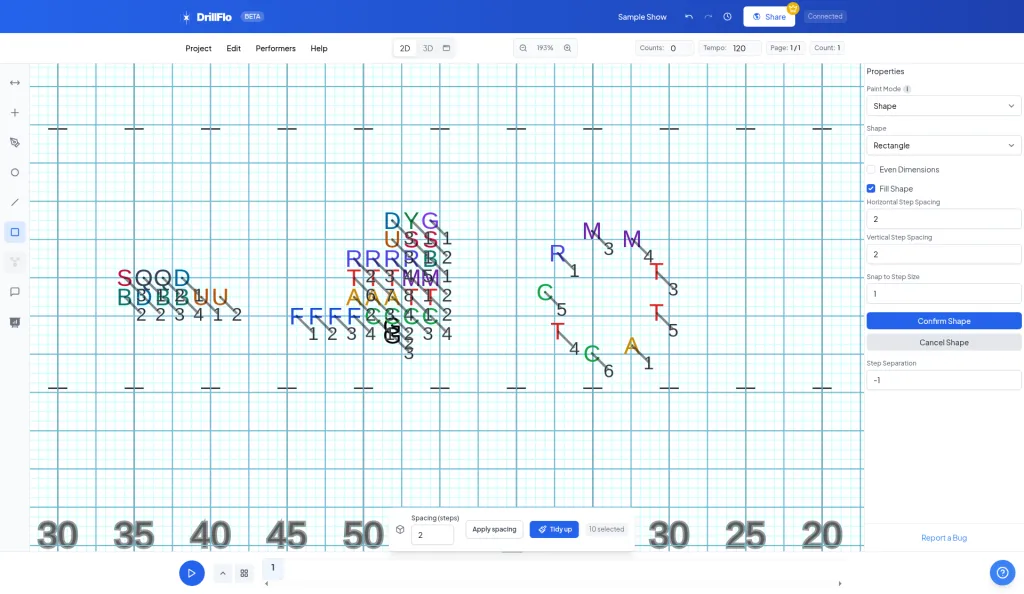
Click Confirm Shape. Your performers move into the block. To start over, click Cancel Shape and draw again.
- Want a square? Check Even Dimensions before you draw.
- Count the dots. If the preview shows fewer dots than you have performers, draw a bigger rectangle or use smaller spacing. Otherwise some performers end up on the same spot.
- Just the outline? Leave Fill Shape unchecked to place performers around the edge of the rectangle instead.
- Done drawing? Press 2 to go back to Select mode.