
Adding performers to a drill document
Here’s how to add performers to a drill you already have open in the editor. If you set up an Ensemble Roster when you created your drill, those performers are already on the field, and you can add more anytime.
-
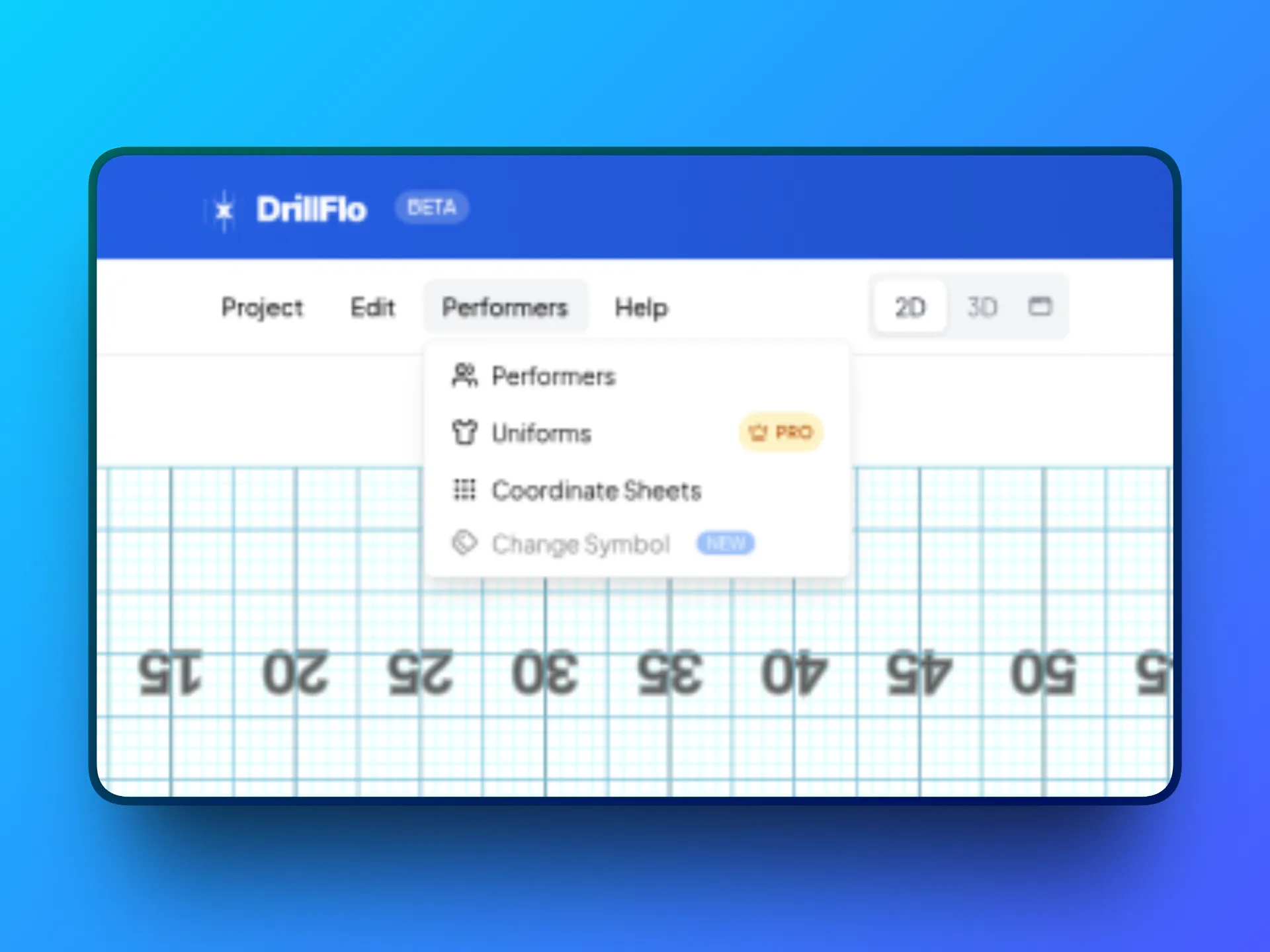
Open the Performers window. In the menu bar at the top of the editor, click Performers, then click Performers again in the menu that opens.
-
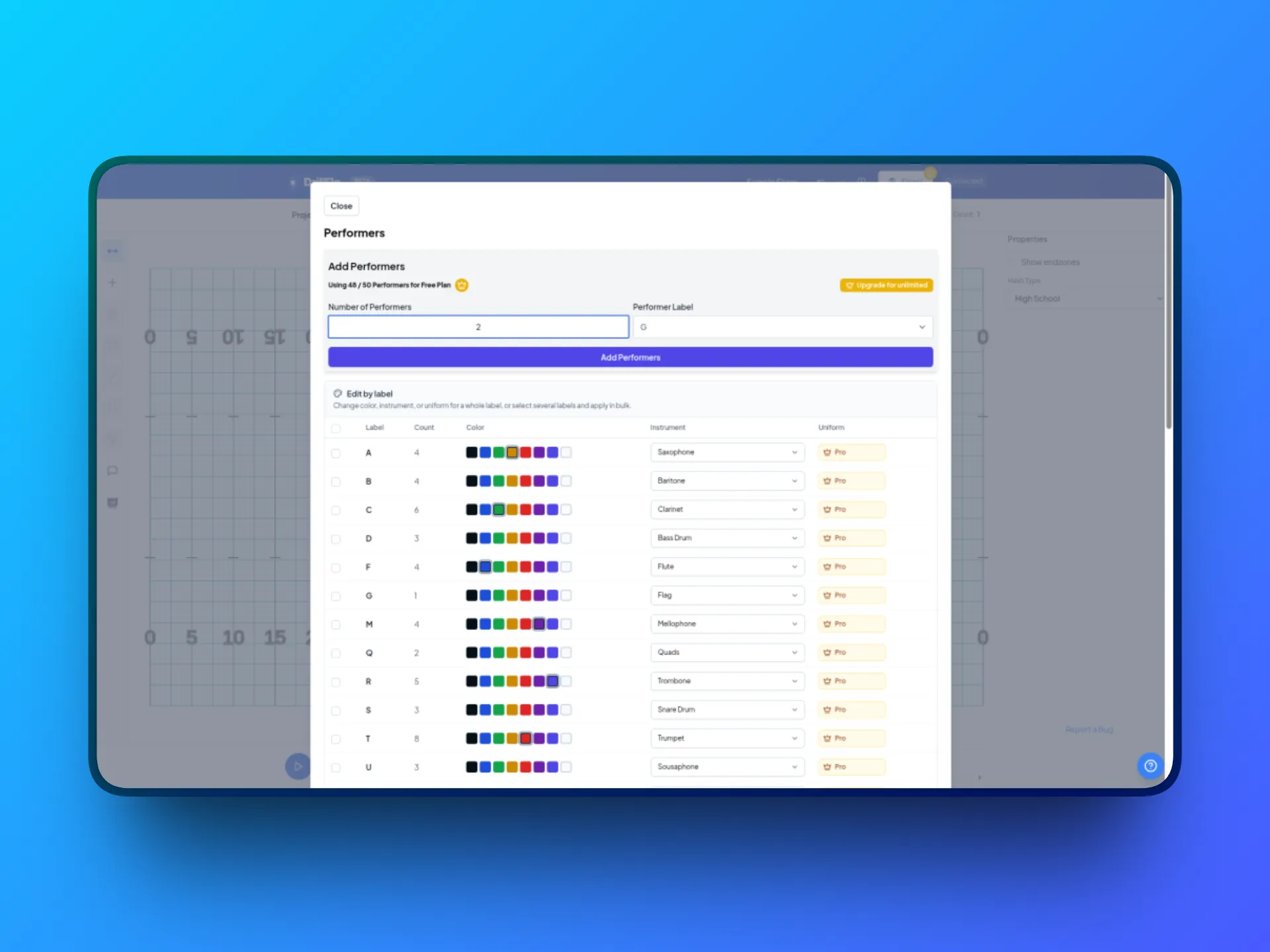
Choose how many. Under Add Performers, type a number in Number of Performers. It starts at 1.
-
Pick a label. Choose a letter from Performer Label (A through Z, or None). The label starts at X. The letter appears on each performer, and performers are numbered within their label, like T1, T2, T3.
-
Click Add Performers. You’ll see a “Performers added” message. DrillFlo places the new performers on the field for you, starting near the center of the field, and adds them to every page of your drill. If you already have performers with that label, numbering picks up where it left off.
-
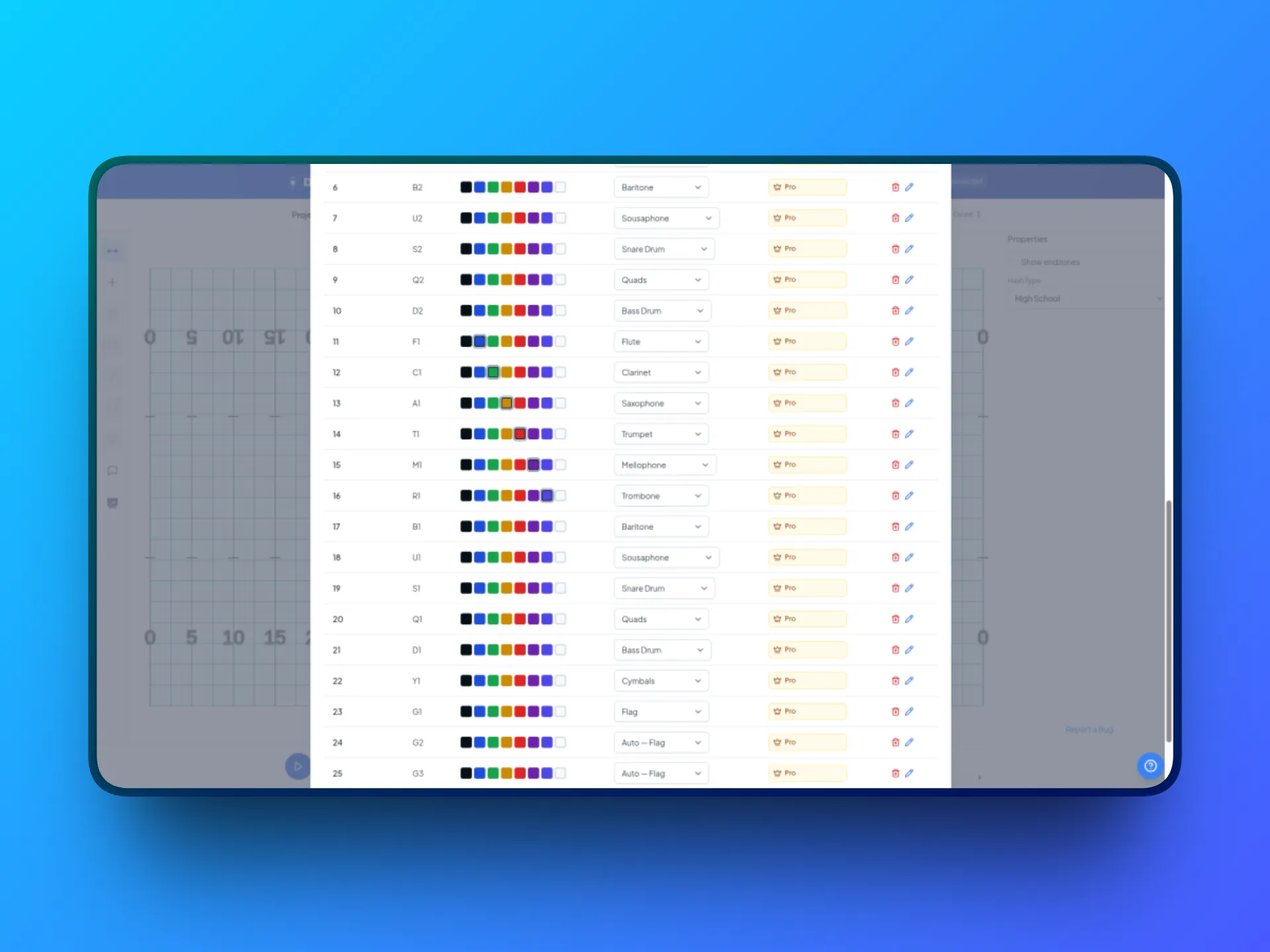
Check your list. Your performers appear in the table at the bottom of the window, with columns for Performer #, Label, Color, Instrument, Uniform, and Actions. The table shows 25 performers at a time. Use Previous and Next to see the rest.
-
Close the window. Click Close to get back to the field.
- Adding a big section? You can add up to 99 performers at a time. Repeat the steps to add more.
- Your label picks the instrument. In the 3D view, each performer’s instrument is chosen from their label letter unless you set one. See Setting performer instruments.
- Made a mistake? In the performer list, click the trash icon to delete a performer, or the pencil icon to relabel one. You can also select performers on the field and press Delete. That removes them from all pages, after you confirm.