
Moving performers
Once performers are selected, you can drag them, nudge them a step at a time, or rotate them as a group.
-
Select your performers. Press 2 for Select mode, then click or drag to select. See Selecting performers.
-
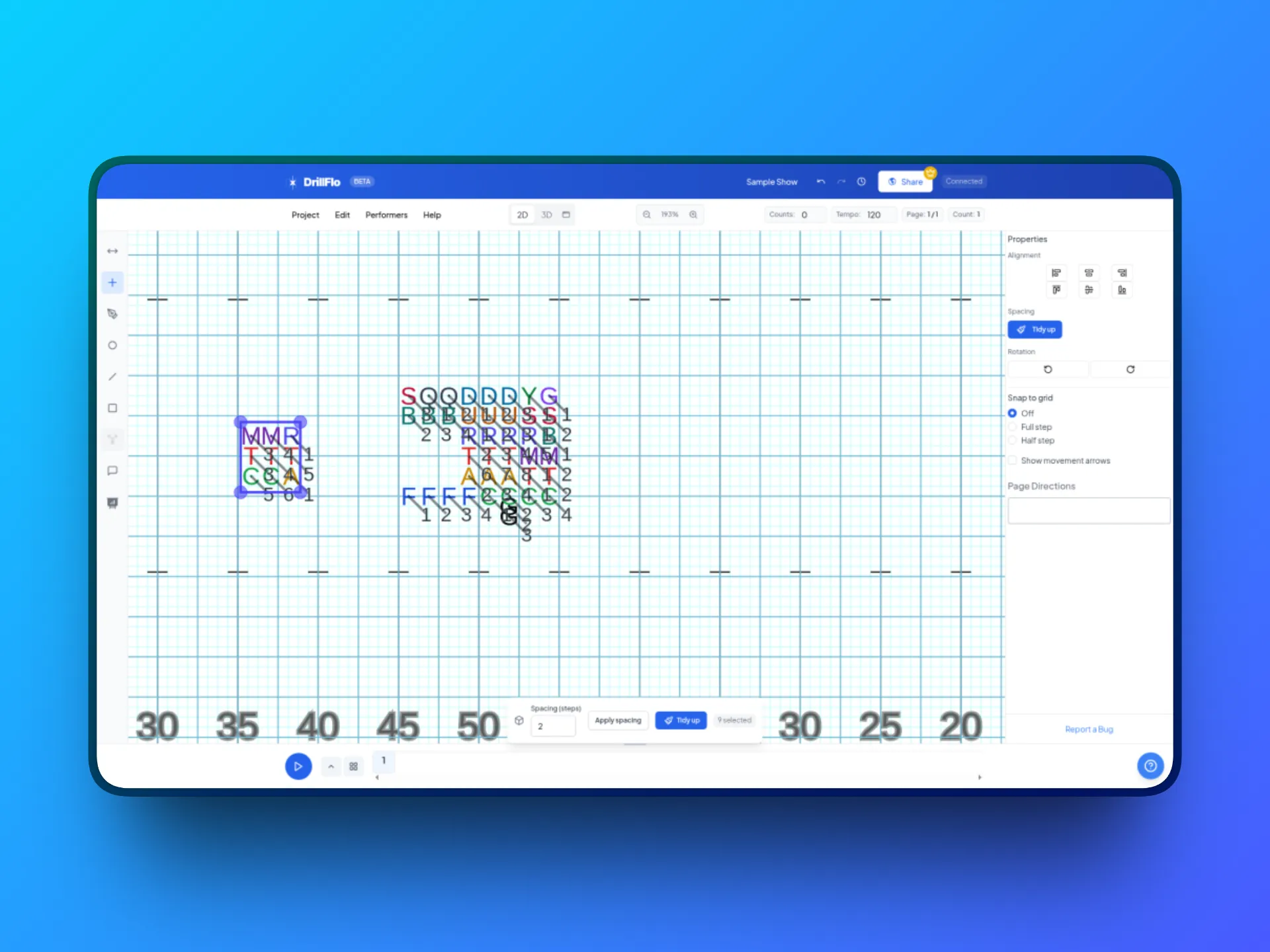
Drag them. Click inside the selection box and drag to move everyone together.
-
Nudge with the arrow keys. Press the Up, Down, Left, or Right arrow key to move your selection one step at a time.
-
Choose how moves snap. In the right panel, under Snap to grid, choose Off, Full step, or Half step. With Half step on, the arrow keys move performers half a step at a time.
-
Rotate the group. In the right panel under Rotation, click Rotate Counter-Clockwise or Rotate Clockwise to turn your selection 45 degrees around its center. To rotate freely, drag an edge of the selection box.
-
Expand or shrink the group. Drag a corner of the selection box.
- Select first, then drag. Dragging from a performer who isn’t selected starts a new selection box instead of moving them.
- Reuse a set. Select performers and click Edit > Copy (⌘C / Ctrl+C). Go to another page and click Edit > Paste (⌘V / Ctrl+V). The same performers jump to the positions you copied.
- See the path. Check Show movement arrows in the right panel to see movement arrows on the field.
- Changed your mind? Click Edit > Undo.