
Adding a page to a drill
Each page is a set in your show. Here’s how to add one from the timeline at the bottom of the editor.
-
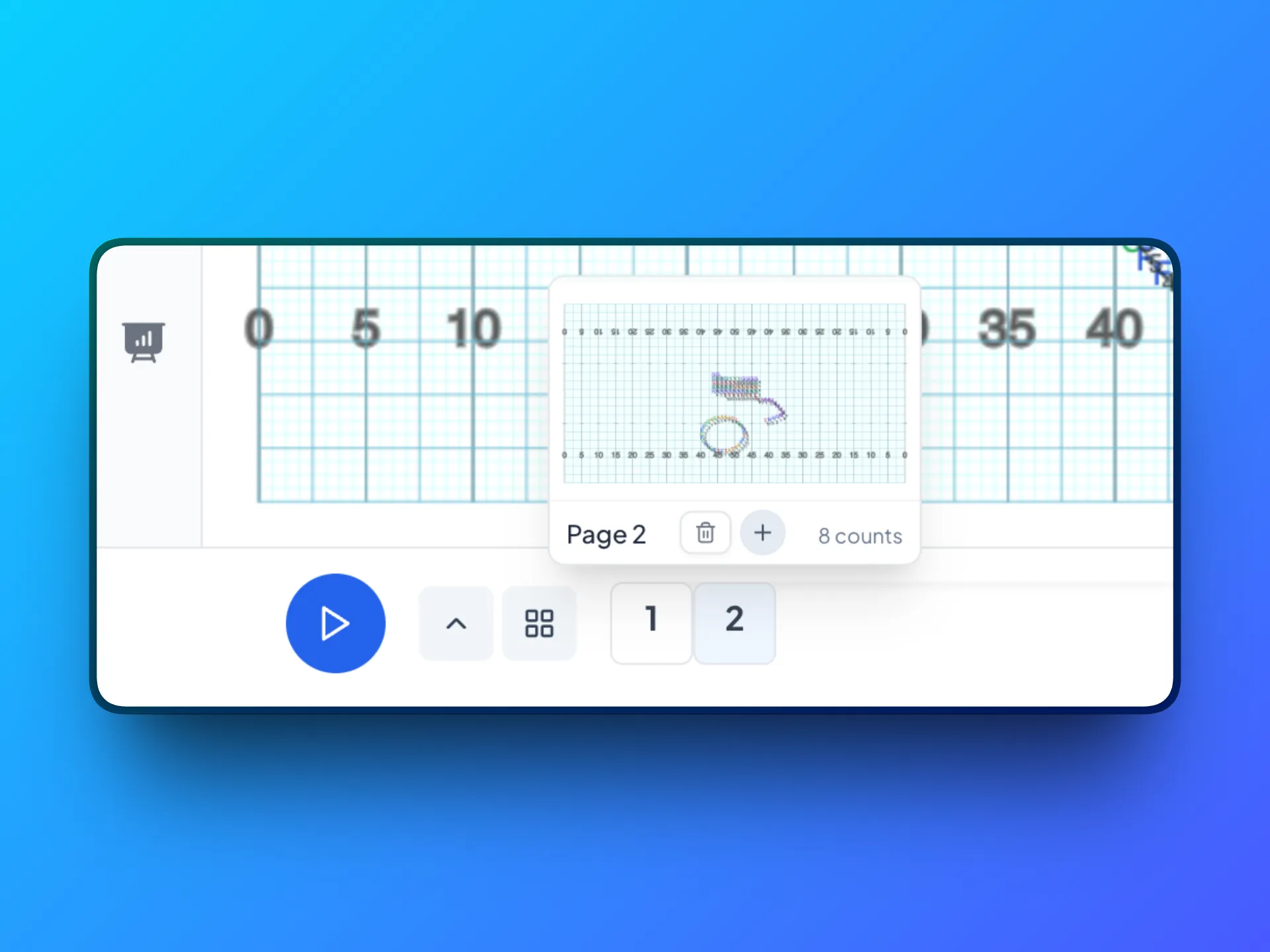
Find the page to add after. In the timeline at the bottom of the editor, hover over a page number. A preview of that page pops up.
-
Click +. In the preview, click the + button to add a page right after that one. You can also expand the timeline (click the arrow button next to Play) and click the + on the right edge of any page.
-
Start on your new page. DrillFlo selects the new page for you. Performers start in the same spots they’re in on the last page of your drill, so you can move them from there.
-
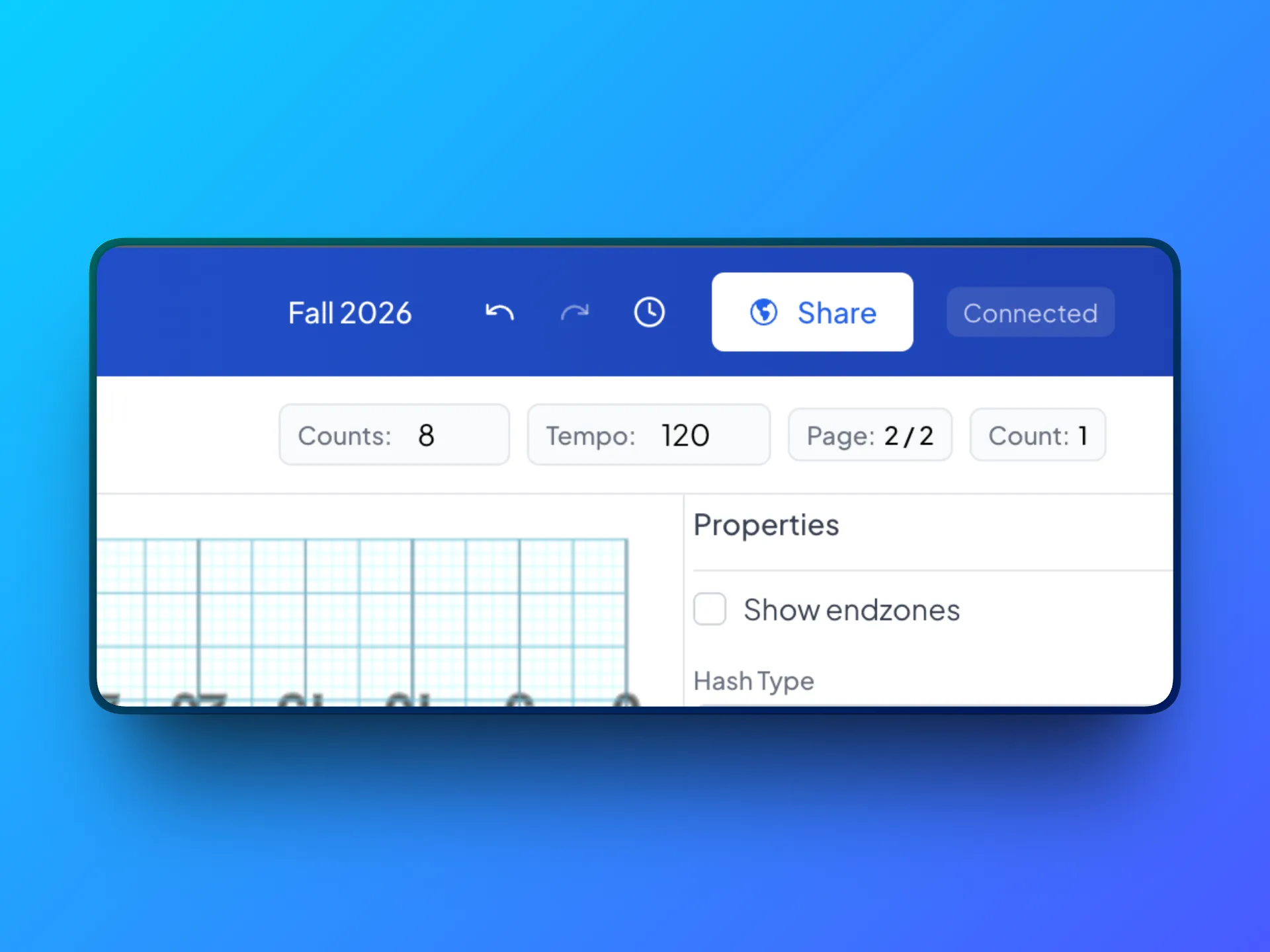
Set counts and tempo. In the top bar, update Counts (how many counts it takes to get to this page) and Tempo (beats per minute). New pages start at 8 counts and use the tempo of your last page. Type a value, then click away to save it.
- Don’t see the + button? It’s hidden when the browser window is narrow. Make the window wider.
- Move between pages. Click a page in the timeline, or press [ for the previous page and ] for the next page. The top bar shows which page you’re on, like “Page: 2 / 5”.
- Counts on page 1. Page 1 is your opening set, so its Counts field can’t be changed.
- See every page. Click the grid button next to Play to show all pages in a gallery.