Starting a new drill document
Here’s how to start a brand-new drill in DrillFlo. It takes about a minute.
-
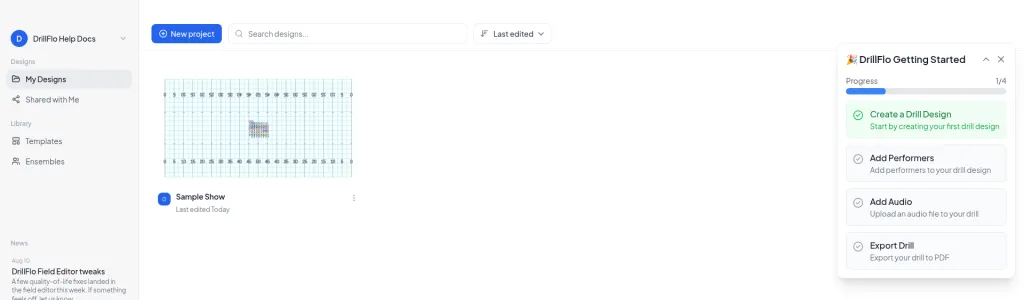
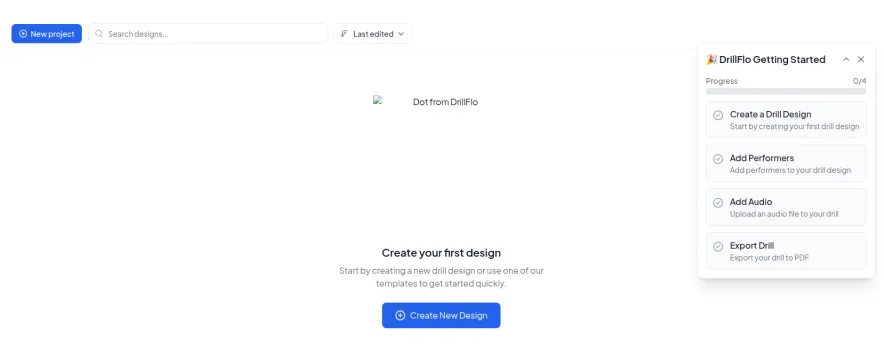
Open My Designs. If you don’t have any designs yet, click Create New Design in the middle of the page. If you already have designs, click New project in the top bar. Either works for starting a new drill.
-
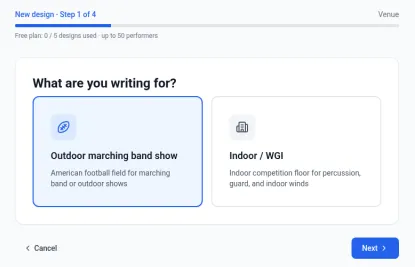
Step 1 of 4: Venue. Under “What are you writing for?”, choose Outdoor marching band show or Indoor / WGI. Then click Next.
-
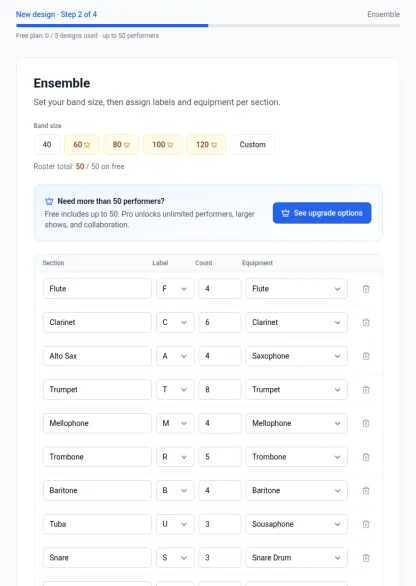
Step 2 of 4: Ensemble Roster. Set up your ensemble members using the presets or create a custom roster. Each row in the roster is one section of your ensemble:
- Section is the name of the group, like Trumpet or Guard.
- Label is the letter shown on each performer’s dot on the field, so you can tell sections apart at a glance.
- Count is how many performers are in that section.
- Equipment is the instrument or equipment they carry, like Trumpet, Snare Drum, or Flag.
Edit any row, remove sections you don’t need, or click Add section. Then click Next.
-
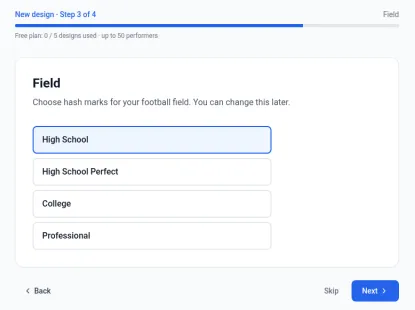
Step 3 of 4: Field. Choose the hash marks that match your field: High School, High School Perfect, College, or Professional. You can change this later. Click Next.
-
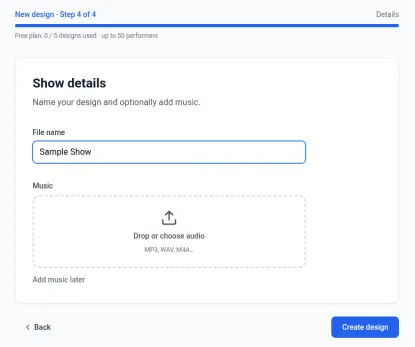
Step 4 of 4: Details. Type a File name for your show, like “Fall Show 2026”. If your music is ready, add the audio file (MP3, WAV, or M4A). If not, click Add music later. Then click Create design.
-
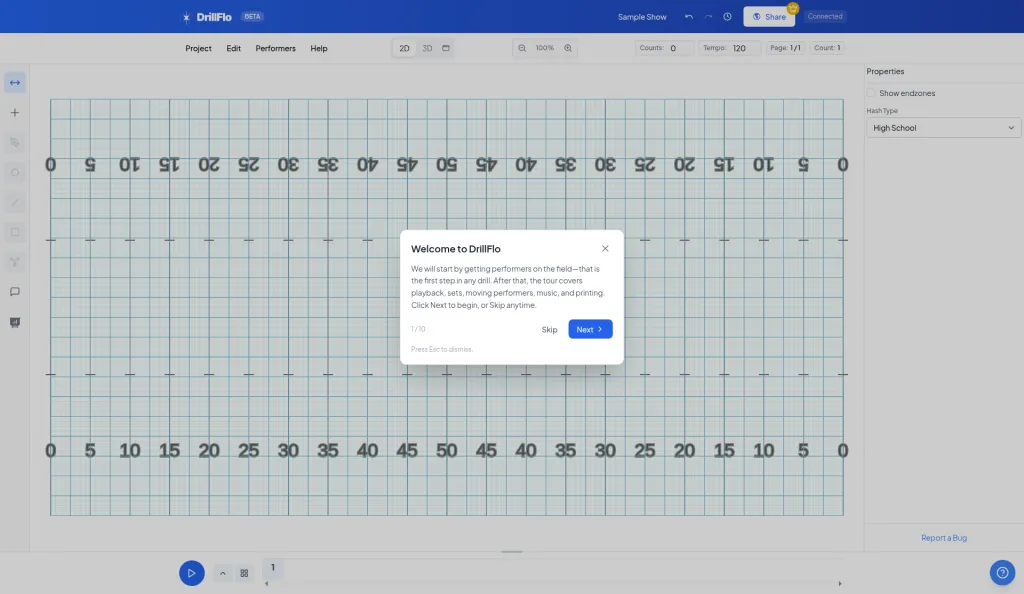
Start writing. Your drill opens with your ensemble already on the field. A Welcome to DrillFlo tour pops up. Click Next to take the tour, or click Skip (or press Esc) to close it.
- Changed your mind about the field? You can change the field and hash settings later from Project > Field Settings.
- No music yet? No problem. You can add music later.
- Find your drill again anytime on My Designs.